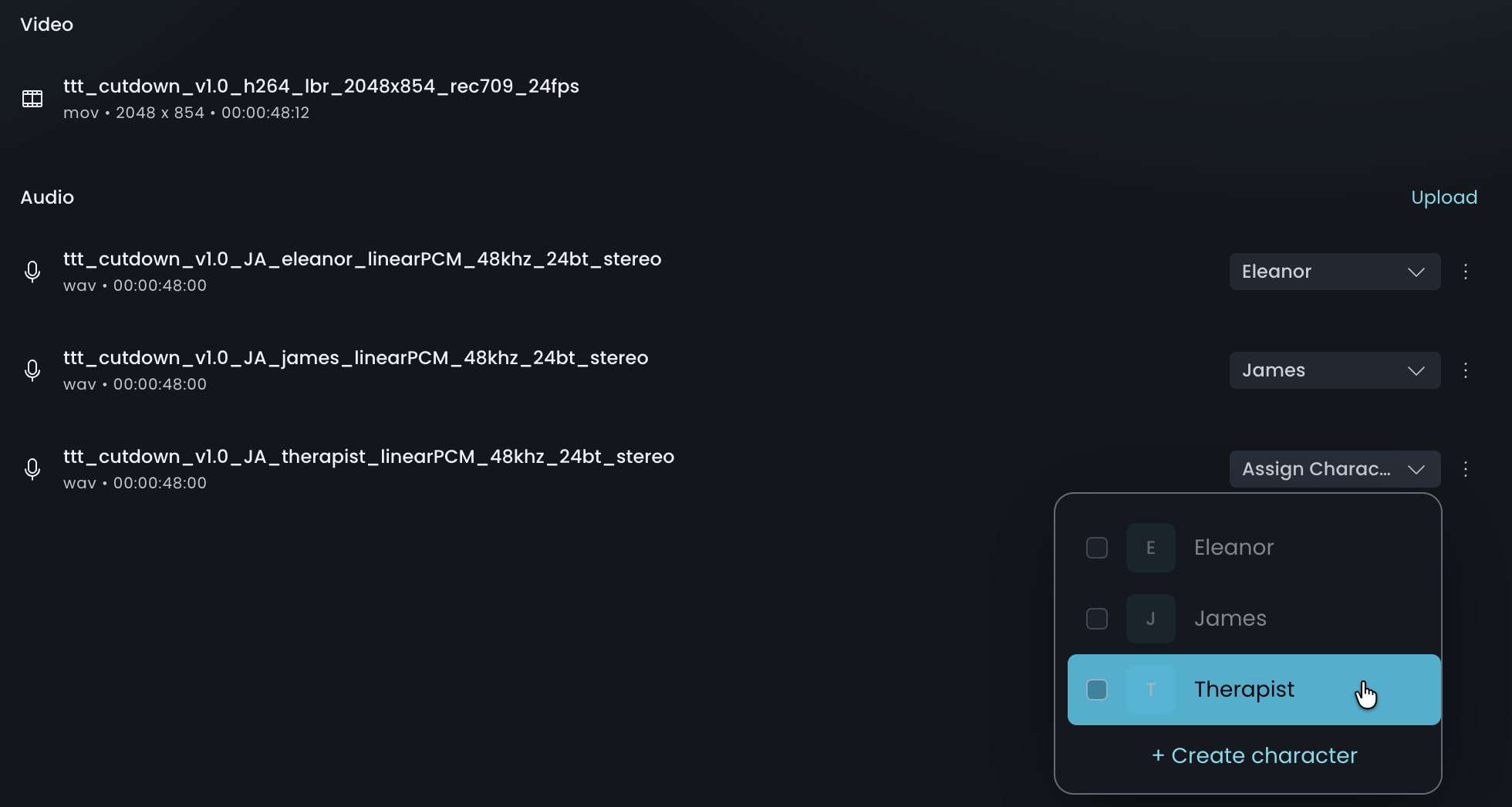
Managing Characters
Create characters and assign each character's dialogue stem in every language.
Before you can map appearances in the Characters tab, three things need to be in place:
- Shots created from your source media
- Dialogue stems uploaded for the language you're working in
- Characters created and assigned to those stems
These don't have to happen in a set order. You can upload stems and create characters before the source media arrives, or create shots first and add stems later. As long as all three are done, you're ready to map appearances.
Recommended order
Shot creation takes a while to process, so we recommend starting it first and preparing your stems while it runs:
- Media tab: upload your source media and start Create Shots.
- Media tab: while shots are processing, upload the per-character dialogue stems.
- Media tab: assign each stem to a character. In your first language you'll create most characters here. In later languages, choose the characters that already exist.
- Characters tab: once shots are ready, map each character's on-screen appearances.
Repeat steps 2 and 3 for each language. Step 4 only needs doing once because appearances are shared by every language.
Creating Characters
You don't need to set up characters in advance. You can create each one as you assign its stem.
In the Assign audio to characters window, type the character's name into the dropdown next to their stem, then select + Create '[name]'. This creates the character and assigns the stem to it in one step. The new character is added to the project's Character library, so it's ready to choose in every other language.
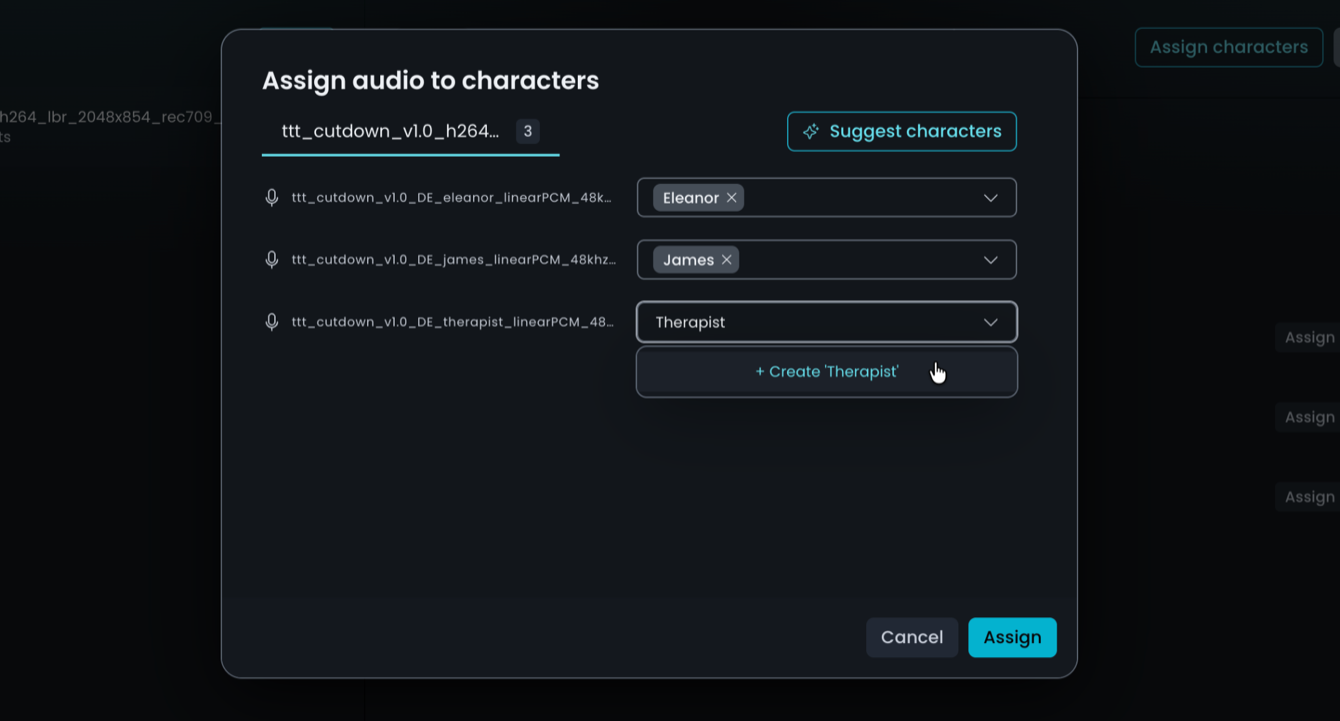
Assigning Dialogue Stems
Once you've created your characters in your first language, they're available in every other language in the project. When the stems for your next language arrive, you don't need to create anything. Just assign each stem to the character that already exists.
- Switch the language selector to the new language.
- Upload that language's stems.
- Assign each stem to its character, either in the Assign audio to characters window or from the dropdown next to each stem in the Audio section.
Once a stem is assigned, the audio begins processing. Repeat for each language in the project.