Media Library
Upload, organize and rename source media and per-character dialogue stems.
The Media Library is your project's central hub for managing all uploaded media, housed in the Media page. It lets you store, sort, and rename media files. Every TrueSync project has its own Media Library.
TrueSync visual dubbing is built on the relationship between the original picture and the localized dialogue. To create vubs you will need the following assets:
- Source media — the original media you want to visually dub.
- Supported formats:
- EXR image sequence
- ProRes
- DNx
- H.264
- (.mxf, .mov or .mp4)
- Audio (optional): if your video file includes audio, it should be a single embedded mono or stereo mix. Ideally this is clean, original-language dialogue only, but a full mix of dialogue, music and effects also works
- Supported formats:
- Per-character dialogue stems — The new dialogue you want to apply to the source media, one file per character, in the language you're vubbing into.
- Recommended format: .wav, LinearPCM, mono
Every per-character dialogue stem must start at exactly the same point as that video. From that shared start point, each line of new dialogue sits where the actor delivers the original line on screen. That is the timing your localized dialogue was recorded and mixed to.
TrueSync uses each stem exactly as it's uploaded, lined up with its source video from the first frame. If the two start at different points, TrueSync will still generate a vub, and nothing will flag the problem. But the lip sync will follow the offset audio rather than the onscreen performance, so it won't match the timing of the scene or the actor's physicality e.g. head movements, gestures, breaths and reactions.
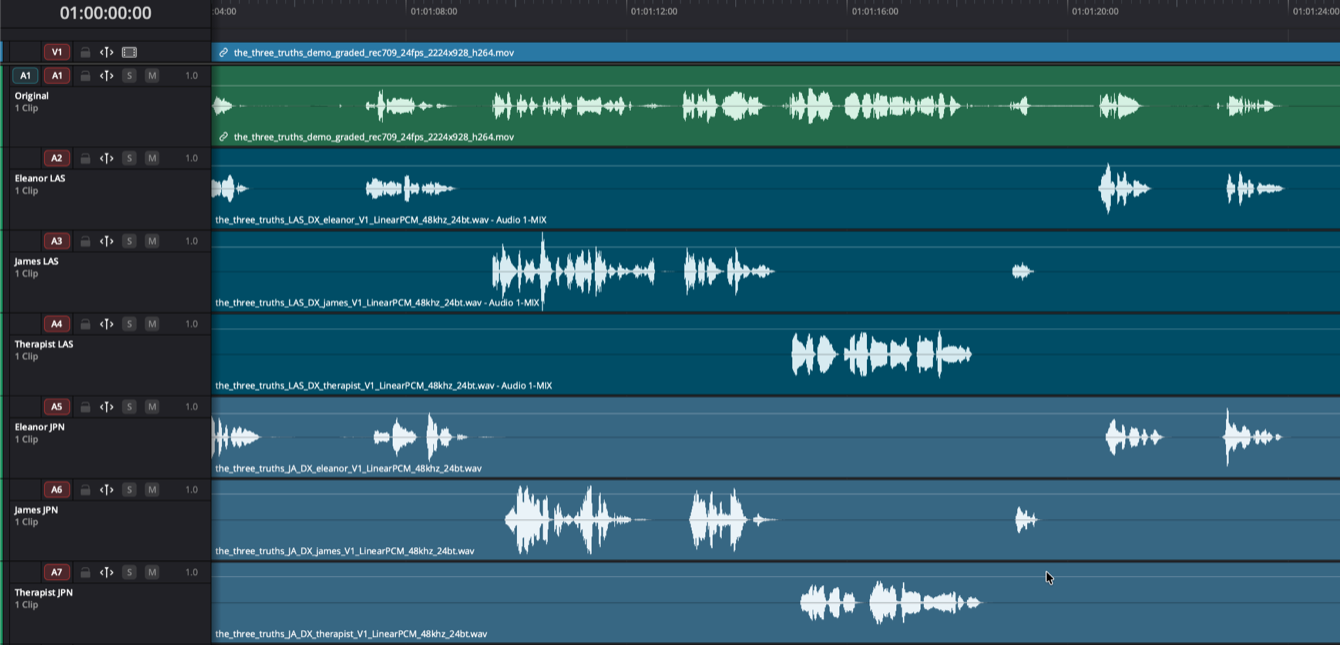
In this example the original media is a drama containing three characters, Eleanor, James and the Therapist and the user wants to create a vubbed output for Latin American Spanish and Japanese
- V1 = Original video media (source media)
- A1 = Embedded original dialogue track, all characters mixed
- A2 = Eleanor’s LAS localized audio
- A3 = James’s LAS localized audio
- A4 = Therapist’s LAS localized audio
- A5 = Eleanor’s Japanese localized audio
- A6 = James’s Japanese localized audio
- A7 = Therapist’s Japanese localized audio
NOTE - Stem starting points
Stems must start at the same point as their source video.
If the source video starts with a 10-second head at 00:59:50:00, its stems must start there too. If it starts on the hour, so must the stems. The timecode stamped on the files doesn't need to match, but the start point does.
Before uploading, check each language's stems against the source video and original dialogue mix in your NLE.
How media is organized and working across languages
A project holds every language you're vubbing into. A language selector sits to the left of the project selector at the top of the page. Switch it to change which language you're working in.
Anything that comes from the picture is shared across all languages, and anything that comes from the audio is done in each language separately.
| Shared across all languages | Done in each language |
|---|---|
| Source media | Per-character dialogue stems |
| Shots creation | Stem assignment |
| Characters creation | Vub generation |
| Character appearance management | Vub review |
Two rules determine where a file belongs:
- Source media is shared. Your picture master sits in the project once and is the source picture of every language you are visually dubbing into.
- Dialogue stems are per language. Each language needs its own set of per-character stems, and each set belongs to a specific source video.
Multiple source files
A project isn't limited to one source video. If a drop-in arrives after you've started (e.g. a re-cut shot, a new scene, a replacement reel), add it to the same project rather than starting again. In the Media tab, select Add in the left-hand panel, then select your preferred upload option.
Each new source video needs shots created and its own per-character stems for every language.
Unassigned media
Files uploaded in the left-hand panel will appear in Unassigned media, which is what happens if you upload everything in one go at the start of a project. Nothing is lost - the files just aren't allocated yet.
To allocate them, select the language you're working in, then select the stems belonging to that language and drag them across. Repeat for each language.
Uploading straight into a language
You can skip Unassigned media. With a language selected, choose the source video, then drag its stems into the audio section of the upload window. They upload already paired to the right video and language.
Audio Stems File Names
Include the source video, character, and language in each file name to speed up assignments and make errors easy to spot.
Consistent file naming will keep your project easier to manage.
Uploading to the Media Library
Click Upload Media, then choose:
- From your computer — for files under 1 GB. Drag and drop into the Add Media window.
- Via Media Shuttle — recommended for larger files (> 1 GB). Install the free Signiant app, then select Open Media Shuttle to be redirected to the Media Shuttle portal.
- Via S3 Connector — a direct link to an S3 bucket, the fastest option for large volumes of media. If you need help setting up the S3 connector, reach out to your Flawless contact.
REQUIREMENTS — Character Dialogue Stems
- One stem per character. Every character with on-screen spoken dialogue needs its own stem. A character can only be vubbed if they have one.
- Clean dialogue only. Each stem should contain that character's dialogue and nothing else, no music, no effects, no other characters.
- Matched timing. Each stem must share the same start frame as the source video and run its full length, so every line sits exactly where it does in the picture.
REQUIREMENTS — EXR Image Sequences
- Timecode: each EXR frame must have timecode metadata. Sequences lacking it, or with duplicated timecodes, fail media validation.
- Naming: each frame's filename must end with the frame number, e.g. my_exr_sequence_0000.exr.
- Bit depth: both 16-bit and 32-bit float formats are accepted.
- Compression: all EXR compression formats are supported.
- Selecting Frame Rate: If you uploaded an EXR image sequence, confirm the frame rate from the frame rate dropdown. Please note: once selected, these settings cannot be changed, so confirm them carefully before continuing.
Renaming your media files
Once uploaded files can be renamed by clicking on the file in the media tab and then clicking on the pen icon next to the name.