Reviewing Vubs
Review vubs in the full show timeline and shot by shot, then set a status.
Once your vubs are complete, head to the Review tab to watch the output and decide what happens to each shot. Review works at two levels: the full show timeline, where you watch the whole visually dubbed sequence in context, and shot-by-shot review, where you compare options and set a status.
NOTE - Playback in the web
What you see in the preview player (and in the refinement tool) is not the full-quality resolution of your export, but a version optimized for web playback.
Full show review
The Review tab opens on the full show timeline. Every shot in your project sits on the timeline in order, color-coded by its current status, with TrueSync's out-of-the-box output already in place.
Press play and you'll watch the entire visually dubbed show end to end, exactly as it currently stands. This is the fastest way to judge the vub in context rather than shot by shot, and it's where you'll spot which shots need attention. Hover over any shot to see its status and the color it maps to.
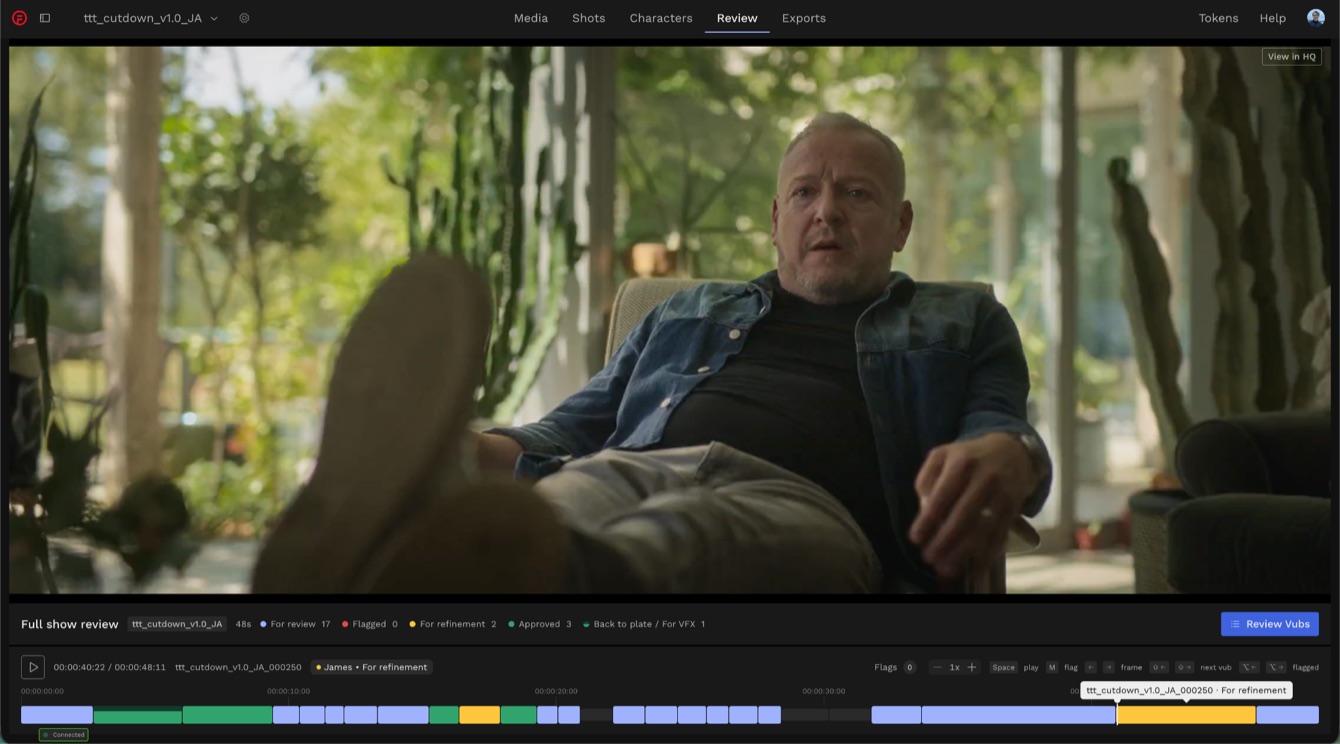
To work through shots individually, select Review vubs in the lower right. From there you can show all shots, or filter down to the ones you want to work on.
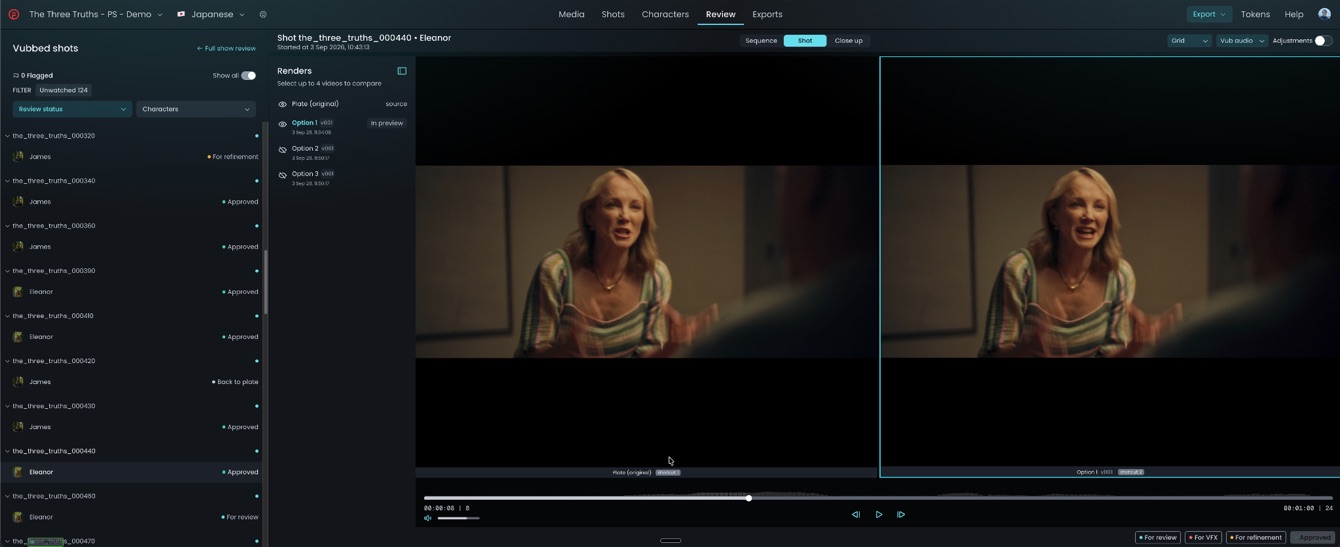
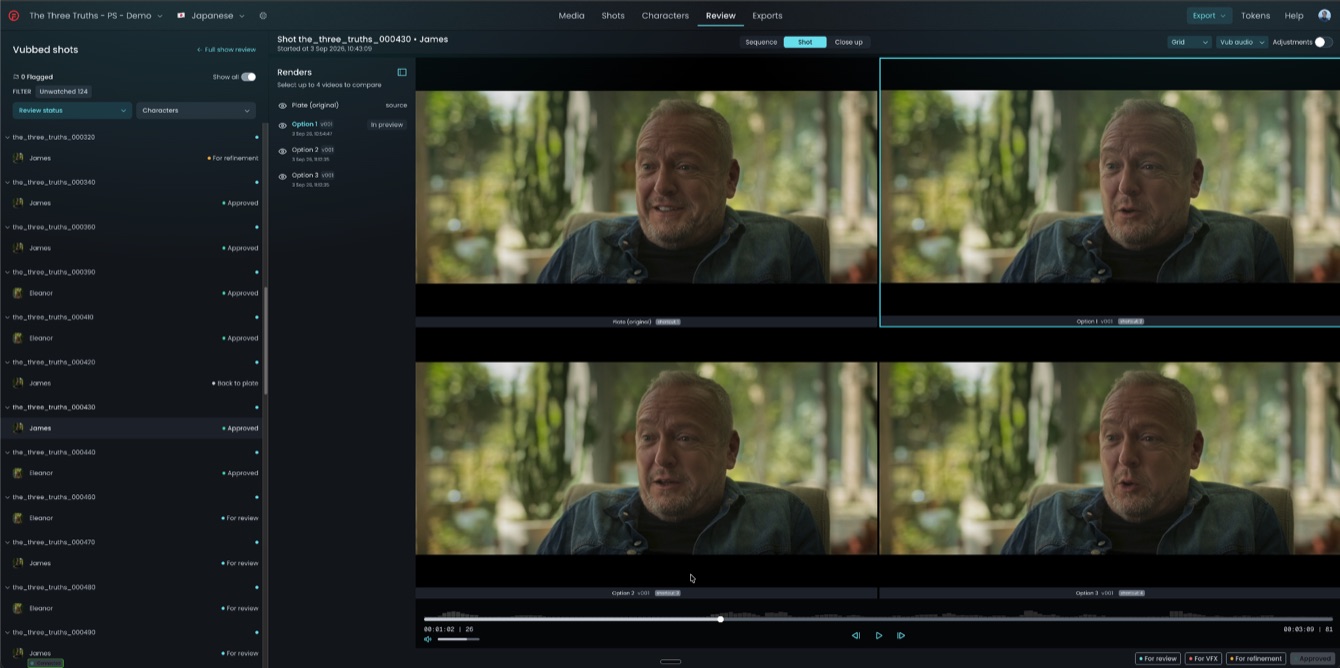
There are four preview windows per shot: Plate (original), Option 1, Option 2, Option 3.
Viewing options
Shot (default)
A full-frame view of all four outputs.
Close up
A cropped, zoomed-in view focused on the target character's face.
Sequence
A full-frame view with a user-defined +1 / +2 shots either side of the target shot, for an in-context review.
NOTE
Each viewing option can be further displayed in three different layouts, Grid, Row and Carousel.
Adjustment controls
Toggle the adjustment control panel on/off. When active, adjust Shadows, Gamma and Brightness to help view shots with dim lighting.
Adjustments apply to all preview windows only, they have no effect on the original media or outputs, and automatically reset when a different shot is selected.

Video playback controls
Player controls sit at the bottom of the video player standard play/pause and scrub, with keyboard shortcuts spacebar and L / R arrows. On the left: volume, timecode counter and frame counter. On the right: total shot duration and total frames.
Selecting a status
Once you've watched the shot through, select a version by clicking your preferred option — a blue box appears around it. You can also use number keys 1 / 2 / 3 / 4, then R to refine or Enter to approve. The status buttons are in the lower-right corner:
For review
Vub to be reviewed.
For VFX
Flags a shot that requires VFX intervention.
For refinement
Marks a shot that needs further refinement.
Approved
For shots that are approved and no longer need refinement.

The panel to the left of the review panel reflects your choice in blue highlighted text. Click the eye icon to hide or reveal specific options, for example, removing a version or two so you can directly compare just two. This customized selection resets to the default layout as soon as the next shot loads.